
WebSocket API published
PgTgBridge exposes a WebSocket for use by the PgTgController. You can design your own user interface to control and monitor data from the amplifer and tuner progamatically using the WebSocket endpoints.
Read MoreFlexRadio® × Elecraft™ — Seamless Interoperability
Connect your FlexRadio® FLEX-6000, FLEX-8000, or Aurora™ series radio to your Elecraft™ KPA1500, KPA500, or KAT500—automatically, silently, and reliably. PgTgBridge runs in the background, and doesn't get in your way. Your radio and amp/tuner just work as one.
This kind of "impedance matching" between vendor ecosystems is relatively rare.... fills a real niche.
PgTgBridge handles the complexity of cross-brand communication so you can focus on operating, not troubleshooting.
Translates the FlexRadio® network protocols in real time, enabling, Power, SWR and Temperature data to display in the native SmartSDR™/iOS software and Maestro™ interfaces. Enables the Amp and Tuner tabs in SmartSDR™, plus Amplifier Operate/Standby and Tuner Enable/Bypass controls.
PgTg installs as a native Windows Service that starts automatically with your PC — always running in the background, no manual launch needed. The workstation running PgTg does not require a user to be logged in to operate normally.
Fully supports the FlexRadio® FLEX-6000 series, FLEX-8000 series, and the new Aurora™ SDR radios.
Fully supports the Elecraft™ KPA1500 amplifer, KPA500 amplifer, and KAT500 tuner.
PgTg is not locked to Elecraft™ amplifiers and tuners. The plugin system allows support to be added for additional manufacturers of amplifiers and tuners as the ecosystem grows.
Also included is a GPIO plugin that controls relay hats on a Raspberry Pi. This is useful to remotely key the KPA500 amplifier. Flexible Triggers are available for PTT, Amp Operate/Standby, Tuner Enable, and Tune cycle start. For the KPA1500, no extra hardware or USB cabling is needed. PgTg sends band data and PTT keying commands over the network so you can move supported hardware into a different room from the radio.
C# developers can build and share their own amplifier and tuner plugins using the same public interfaces that PgTg uses internally.
Sample project templates for Amplifier, Tuner and a combination of both. Full documentation is available on GitHub.
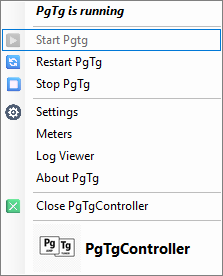
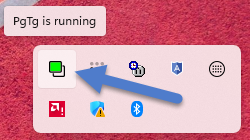
A lightweight tray application gives you instant access to PgTg status, start/stop controls, and settings without cluttering your desktop.
Radio selection is automatic, or a specific radio can be bound to PgTg when there are multiple radios on your network subnet.
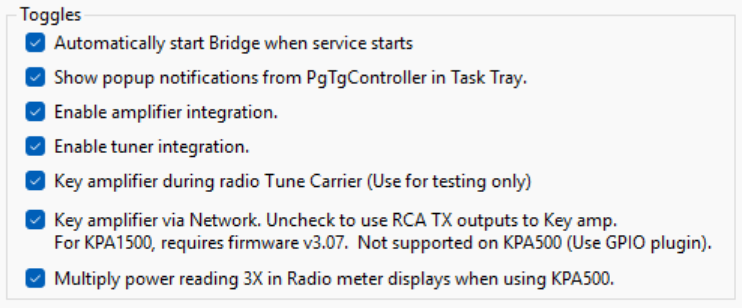
Checkbox options allow user customization of features. If you are not using a tuner, that feature can be hidden.
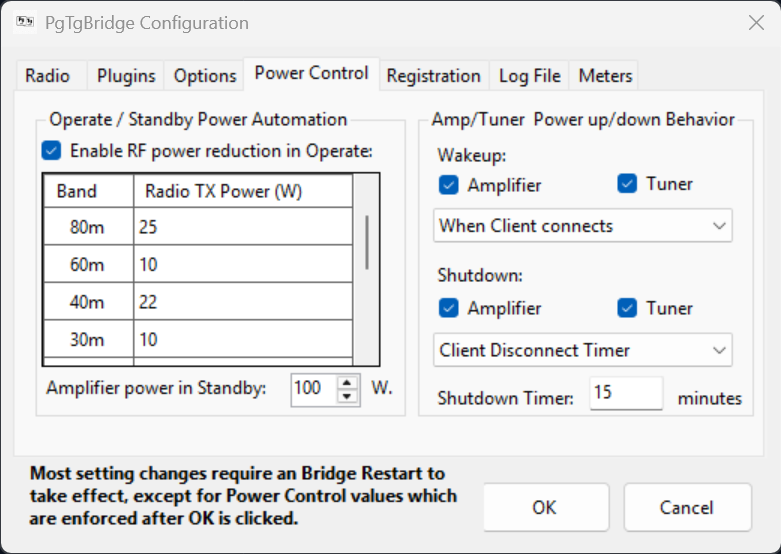
Versatile RF and DC power control options.
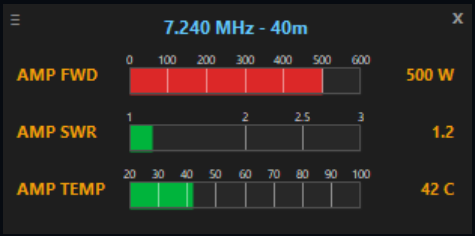
A resizable floating meter panel reports Power, Temperature and SWR values.
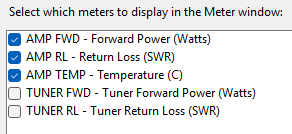
The visiblity of each meter bargraph is configurable.
PgTgBridge exposes a WebSocket for use by the PgTgController. You can design your own user interface to control and monitor data from the amplifer and tuner progamatically using the WebSocket endpoints.
Read MoreAfter extensive testing and many builds, PgTgBridge build #1014 is now in General Available status. This build supports all FLEX-6000/8000 series radios paired with either an KPA1500 or KPA500 / KAT500 pair.
Read MoreThe PgTg Plugin SDK documentation is now live. C# developers can create custom amplifier and tuner plugins using the same public interfaces used by PgTgBridge internally. Full API reference and sample projects are included.
Read MoreWatch PgTgBridge integrate FlexRadio® on the Maestro and in SmartSDR™ with Elecraft™ amplifiers in these early, rough cut videos.
FlexRadio® integration with the Elecraft™ KPA1500
FlexRadio® integration with the Elecraft™ KPA500 / KAT500
Device Control of KPA1500 / KPA500 / KAT500
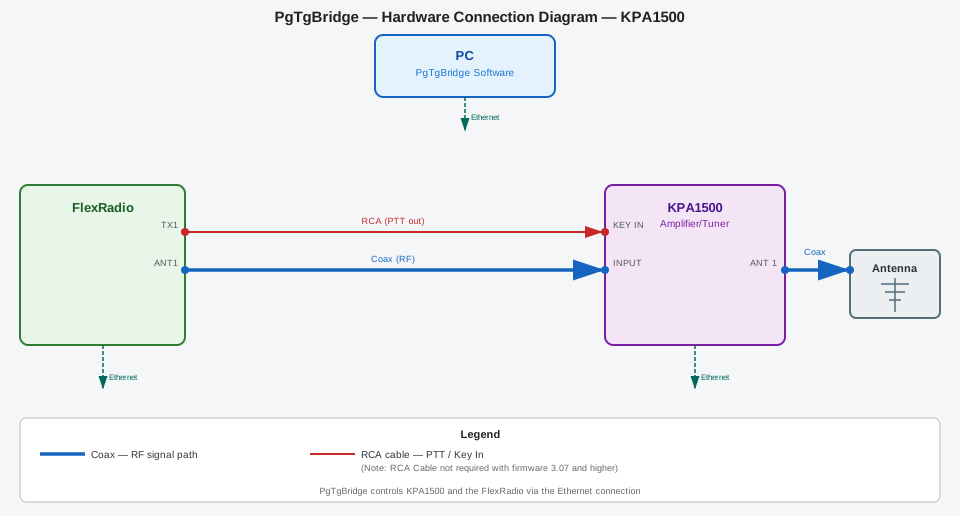
This diagram shows the full integration between a FlexRadio® transceiver and the Elecraft™ KPA1500 amplifier using PgTgBridge. The radio's keying output (either TX1/TX2/TX3) connects to the KPA1500 amplifier Key In input (you likely already do this). PgTgBridge relays band data, metering data and PTT signaling (with the correct firmware) to the radio. All signaling is performed via TCP to the KPA1500 Ethernet interface. This enables seamless amplifier and tuner control directly from SmartSDR™ the Maestro, or any SDR Client supported by the FlexRadio®.
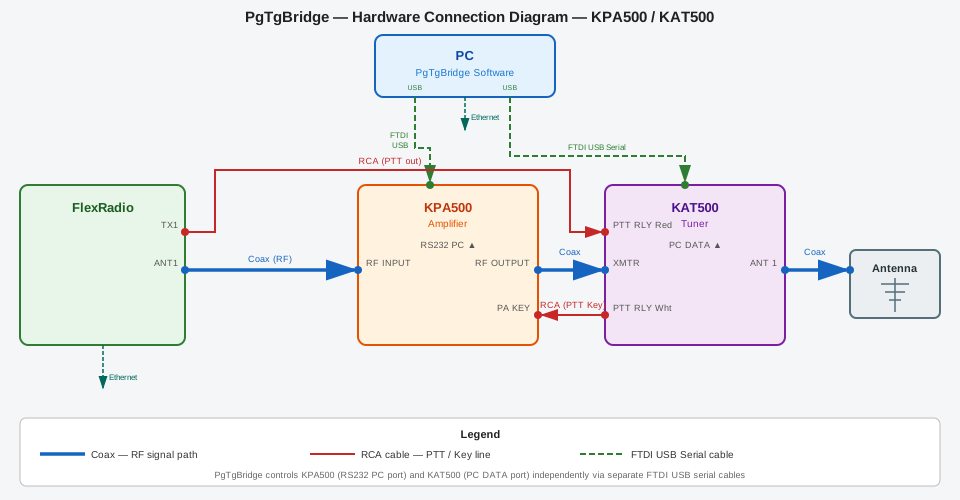
This diagram illustrates the connections required to use a KPA500 amplifier paired with a KAT500 automatic antenna tuner. When used together, PgTgBridge links the KPA500 and KAT500 using direct USB connections from the PC and sending band data and all control functions such as Operate/Standby and tuner commands. PgTgBridge polls the KPA500 / KAT500 for metering data and sends it on to the radio. You also may use the KPA500 amplifier without the KAT500 tuner if desired. Or, if you just want to use the KAT500 with your Aurora™, that is possible as well.
Note that the USB cables are NOT CONNECTED TO THE RADIO! PgTgBridge requires exclusive access to the serial ports of these two devices. Serial Port sharing software is not supported. The good news is PgTgBridge provides custom device control windows so you can manually adjust features like antenna selections directly. You don't need to use Elecraft utilities for remote controlling the device. (Keep them for applying firmware updates and configuration changes however.)
You need one of the supported radio models from FlexRadio® and one of the supported amplifiers from Elecraft™
You also will need a PC running Windows 10 / 11 to run PgTgBridge.
Of course, you can use the radio and amplifier/tuner as you are right now. However, PgTgBridge adds some great functionality that you are missing out on.
Specifically:
Yes, absolutely! PgTgBridge works just fine with FlexRadio® models having the front display. The interface looks the same as on a Maestro™ You will see two icons appear near the MENU button for Amp and Tuner status. If you open the METERS panel, you can add meters displaying amplifier power, SWR and temperature, plus tuner power and SWR as well. You can even use the SmartControl mode and monitor another user’s operations.
PgTgBridge is written to use multiple threads asynchronously. Resource utilization is very low, typically under 3% CPU load. You will never notice it! The PgTg Service uses about 78 Megs of RAM, and the PgTgController adds an addition 120 Megs. In terms of a typical, modern PC suitable for running Windows 10, these are small numbers. If you are concerned, you can close PgTgController to regain some resources, and the PgTgBridge Windows Service will continue operating normally in the background.
Updating PgTgBridge is very easy! You don’t need to do anything special, though you can stop the service if you want to. After downloading the installer for a new version, just execute in the same way you first installed PgTgBridge. The installer will stop the service and controller, update them, and restart the new version for you. Your settings will be retained during upgrades. Even if you uninstall PgTgBridge completely, your settings file will remain in case you want to reinstall it.
No, not at this point. PgTgBridge is currently written to bind to a single radio at one time. You will need to install PgTgBridge on separate PCs, one for each radio. Then, you configure each installation to bind to the desired radio it is allocated for. You likely have a PC for each operating station for logging, so you should install PgTgBridge on each one. It won’t get in the way of your other applications.
Both clients will see the amplifier and tuner controls, along with the metering. PgTgBridge will follow the Transmit slice frequency (as it changes depending on which client is in PTT) and keep the amplifier and tuner synchronized.
Sorry, no. The registration is tied to the radio serial number. If you sell that radio, the new owner will be able to install and use PgTgBridge with it. (You should give the new owner the registration code as an incentive to buy it!) You will have to obtain another registration code for your new radio if you want to continue using PgTgBridge.
If restarting PgTgBridge from the Controller doesn’t help, you may need to restart the radio and or your PC too.
“Try before you buy” is a long standing idea. PgTgBridge is a niche application that may or may not be useful to you. PgTgBridge is configured to run in full operational mode for a trial period before disabling itself. The trial period is quite generous at 60 days— long enough to decide if you like what I’ve done here. PgTgBridge is not Open Source, so it’s not free! I am sure you will realize the value of having PgTgBridge in your shack, well before the trial period expires.
Yes! PgTgBridge is still being actively developed and refined. It’s not perfect. There may be bugs! It’s software after all, it will always need to evolve.
PgTgBridge installs as a Windows Service and includes a system tray controller application. Supports FlexRadio® FLEX-6000, FLEX-8000, and Aurora™ series radios with Elecraft™ KPA1500, KPA500 amplifiers and KAT500 tuner. The built-in plugin architecture allows extending support to additional hardware. Trial runs for 60 days with full access to all features. Registration key tied to your FlexRadio® serial number permanently unlocks Trial for radio lifetime.
Download PgTgBridge v1.26.1014.1Build custom amplifier and tuner plugins for PgTgBridge using C#. The SDK provides all interfaces, documentation, and sample projects needed to extend hardware compatibility beyond the built-in support. Get your A.I. Prompting hat on!